Complete Guide to Strong Passwords and Authentication

Cyber risks are smarter than ever in today’s digital world. People and companies can lose money, have their data stolen, or have their identities stolen if they use weak passwords or old authentication methods. A strong password is the first thing that will protect you from hackers, but it’s not the only thing that will do the job. 

This guide talks about the basics of strong passwords, two-factor authentication, and the safest ways to keep your accounts safe. We’ll also talk about new verification methods and mistakes you should never make.

Why Are Strong Passwords Essential?

Your password is like a digital key that lets you into your personal and work accounts. Hackers use methods like brute-force attacks, phishing, and credential stuffing to get into accounts with weak passwords. If someone gets your password, they might be able to get in without your permission, steal your info, or even commit fraud.

Most people make the mistake of using passwords that are easy to figure out, like “123456” or “password.” Most of the time, these are the first options hackers try. Reusing passwords is another risk. If you use the same password for more than one account, one breach can let hackers into all of them.

Today’s security standards say that passwords should have a mix of numbers, capital and small letters, and special characters. But complexity isn’t enough on its own. Length is also important—experts say at least 12 characters is best. Password tools can help you make unique, complicated passwords and safely store them. They make it easier to remember multiple passwords and lower the chance that someone will use the same one twice. We’ll talk about how multi-factor authentication adds another level of security in the next section. 

How Does Multi-Factor Authentication Enhance Security?

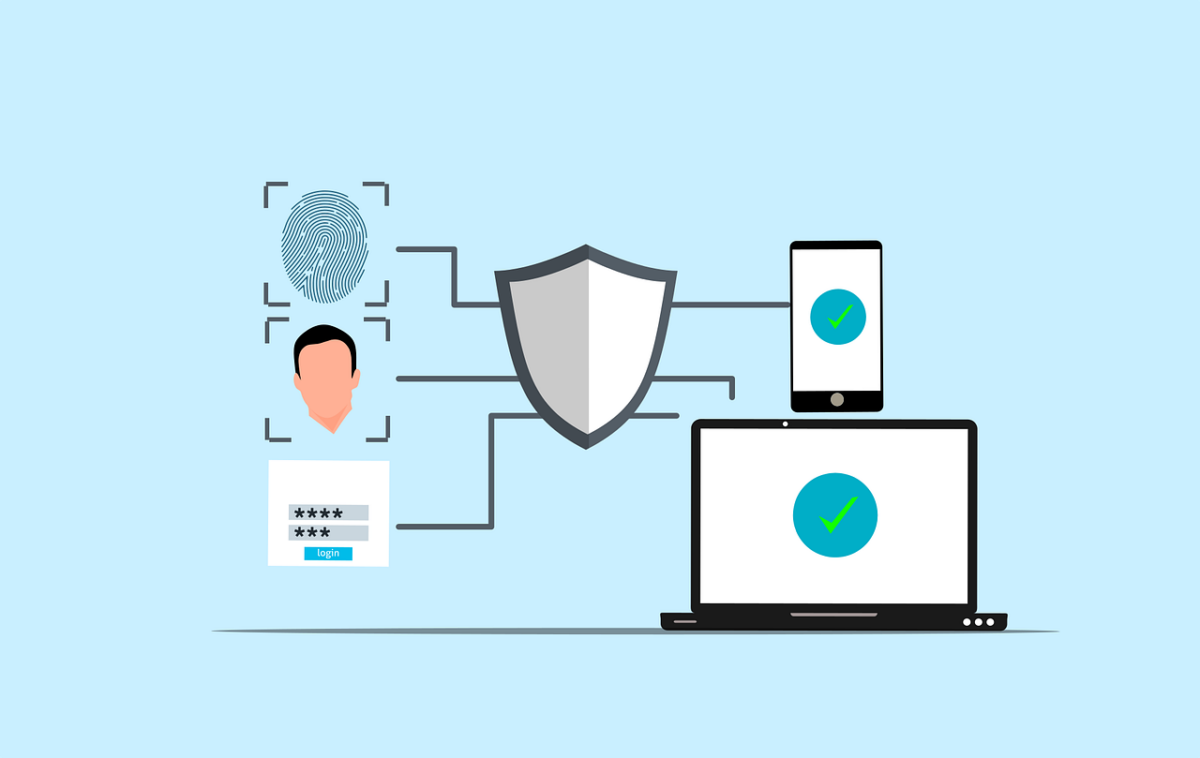
Multi-factor authentication (MFA) requires users to provide two or more verification methods before accessing an account. This significantly reduces the risk of unauthorized access, even if a password is compromised.

Types of Authentication Factors

  • Something You Know – Passwords, PINs, or security questions.
  • Something You Have – A smartphone, hardware token, or security key.
  • Something You Are – Biometric verification like fingerprints or facial recognition.

Common MFA Methods

  • SMS-Based Codes – A one-time code sent via text. While convenient, SIM-swapping attacks make this method less secure.
  • Authenticator Apps – Apps like Google Authenticator generate time-sensitive codes without relying on SMS.
  • Hardware Tokens – Physical devices like YubiKey provide phishing-resistant authentication.

Despite its effectiveness, MFA adoption remains low due to perceived inconvenience. However, the trade-off between security and usability is minimal compared to the risks of account takeover. Next, we’ll look at emerging trends in authentication technology.

What Are the Latest Trends in Authentication?

Traditional passwords are gradually being replaced by more secure and user-friendly alternatives. Passwordless authentication is gaining traction, using biometrics or cryptographic keys instead of memorized secrets.

Biometric authentication, such as fingerprint and facial recognition, offers convenience but isn’t foolproof—biometric data can be spoofed or stolen. Behavioral biometrics, which analyze typing patterns or mouse movements, provide an additional layer of security.

Another innovation is FIDO (Fast Identity Online) standards, which enable passwordless logins via hardware security keys or device-based authentication. Major tech companies like Apple, Google, and Microsoft are adopting FIDO to phase out passwords entirely.

While these technologies improve security, user education remains critical. Many breaches occur due to human error, such as falling for phishing scams. In the final section, we’ll cover best practices for maintaining secure credentials.

How Can You Maintain Strong Authentication Practices?

Regularly updating passwords and enabling MFA are foundational steps, but proactive monitoring is equally important. Here’s how to stay ahead of threats:

  • Monitor for Data Breaches – Services like Have I Been Pwned notify users if their credentials appear in leaked databases.
  • Avoid Phishing Scams – Never enter credentials on suspicious links or emails pretending to be from trusted sources.
  • Use a Password Manager – These tools generate, store, and autofill complex passwords while encrypting them for safety.

Businesses should enforce password policies and conduct cybersecurity training. Individuals should treat their passwords like house keys—never leave them exposed or reuse them carelessly.

What Are the Most Common Password Mistakes to Avoid?

Even with the best intentions, many people unknowingly undermine their own cybersecurity with poor password habits. Understanding these pitfalls is the first step toward creating a more secure digital presence.

Using Easily Guessable Passwords

Many users still rely on simple, predictable passwords like “123456,” “password,” or “qwerty.” These are the first combinations hackers attempt in brute-force attacks. Even slight variations, such as “Password123,” offer little protection. A strong password should never contain dictionary words, sequential numbers, or personal information like birthdays or pet names.

Reusing Passwords Across Multiple Accounts

One of the most dangerous habits is recycling the same password for different accounts. If a hacker gains access to one account, they can easily compromise others. Studies show that over 60% of people reuse passwords, making credential-stuffing attacks highly effective.

Ignoring Two-Factor Authentication (2FA)

While not strictly a password mistake, failing to enable 2FA leaves accounts unnecessarily vulnerable. Even a strong password can be compromised, but 2FA acts as a critical backup defense. Many users skip this step due to perceived inconvenience, not realizing how much risk they’re accepting.

Writing Down Passwords or Storing Them Insecurely

Jotting down passwords on sticky notes or in unencrypted files defeats the purpose of strong credentials. If these physical or digital notes are lost or stolen, attackers gain instant access. A password manager is a far safer alternative, as it encrypts and organizes login details securely.

Never Updating Passwords

Some users keep the same password for years, even after a known data breach. Regularly updating passwords—especially for sensitive accounts like email or banking—reduces the window of opportunity for attackers. Experts recommend changing critical passwords every 3-6 months.

Ready to Strengthen Your Digital Security?

Cybersecurity is an ongoing effort, and staying informed is your best defense. Strong passwords and multi-factor authentication are just the beginning—emerging technologies like biometrics and passwordless logins are shaping the future of secure access. Whether you’re an individual or a business, adopting these practices can prevent costly breaches.

Contact us for personalized cybersecurity solutions tailored to your needs.

Featured Image Credit

This Article has been Republished with Permission from The Technology Press.

What is Password Spraying?

Password spraying is a complex type of cyberattack that uses weak passwords to get into multiple user accounts without permission. Using the same password or a list of passwords that are often used on multiple accounts is what this method is all about. The goal is to get around common security measures like account lockouts. 

Attacks that use a lot of passwords are very successful because they target the weakest link in cybersecurity, which is people and how they manage their passwords. This piece will explain how password spraying works, talk about how it’s different from other brute-force attacks, and look at ways to find and stop it. We will also look at cases from real life and talk about how businesses can protect themselves from these threats.

What Is Password Spraying And How Does It Work?

A brute-force attack called “password spraying” tries to get into multiple accounts with the same password. Attackers can avoid account shutdown policies with this method. These policies are usually put in place to stop brute-force attacks that try to access a single account with multiple passwords. For password spraying to work, a lot of people need to use weak passwords that are easy to figure out. 

Attackers often get lists of usernames from public directories or data leaks that have already happened. They then use the same passwords to try to log in to all of these accounts. Usually, the process is automated so that it can quickly try all possible pairs of username and password.

The attackers’ plan is to pick a small group of common passwords that at least some people in the target company are likely to use. These passwords are usually taken from lists of common passwords that are available to the public, or they are based on information about the group, like the name or location of the company. Attackers lower their chances of being locked out while increasing their chances of successfully logging in by using the same set of passwords for multiple accounts.

A lot of people don’t notice password spraying attacks because they don’t cause as much suspicious behavior as other types of brute-force attacks. The attack looks less dangerous because only one password is used at a time, so it might not set off any instant alarms. But if these attempts are made on multiple accounts, they can have a terrible effect if they are not properly tracked and dealt with.

Password spraying has become popular among hackers, even those working for the government, in recent years. Because it is so easy to do and works so well to get around security measures, it is a major threat to both personal and business data security. As cybersecurity improves, it will become more important to understand and stop password spraying threats.

In the next section, we’ll discuss how password spraying differs from other types of cyberattacks and explore strategies for its detection.

How Does Password Spraying Differ from Other Cyberattacks?

Password spraying is distinct from other brute-force attacks in its approach and execution. While traditional brute-force attacks focus on trying multiple passwords against a single account, password spraying uses a single password across multiple accounts. This difference allows attackers to avoid triggering account lockout policies, which are designed to protect against excessive login attempts on a single account.

Understanding Brute-Force Attacks

Brute-force attacks involve systematically trying all possible combinations of passwords to gain access to an account. These attacks are often resource-intensive and can be easily detected due to the high volume of login attempts on a single account.

Comparing Credential Stuffing

Credential stuffing is another type of brute-force attack that involves using lists of stolen username and password combinations to attempt logins. Unlike password spraying, credential stuffing relies on previously compromised credentials rather than guessing common passwords.

The Stealthy Nature of Password Spraying

Password spraying attacks are stealthier than traditional brute-force attacks because they distribute attempts across many accounts, making them harder to detect. This stealthiness is a key factor in their effectiveness, as they can often go unnoticed until significant damage has been done.

In the next section, we’ll explore how organizations can detect and prevent these attacks.

How Can Organizations Detect and Prevent Password Spraying Attacks?

Detecting password spraying attacks requires a proactive approach to monitoring and analysis. Organizations must implement robust security measures to identify suspicious activities early on. This includes monitoring for unusual login attempts, establishing baseline thresholds for failed logins, and using advanced security tools to detect patterns indicative of password spraying.

Implementing Strong Password Policies

Enforcing strong, unique passwords for all users is crucial in preventing password spraying attacks. Organizations should adopt guidelines that ensure passwords are complex, lengthy, and regularly updated. Tools like password managers can help users generate and securely store strong passwords.

Deploying Multi-Factor Authentication

Multi-factor authentication (MFA) significantly reduces the risk of unauthorized access by requiring additional verification steps beyond just a password. Implementing MFA across all user accounts, especially those accessing sensitive information, is essential for protecting against password spraying.

Conducting Regular Security Audits

Regular audits of authentication logs and security posture assessments can help identify vulnerabilities that could facilitate password spraying attacks. These audits should focus on detecting trends that automated tools might miss and ensuring that all security measures are up-to-date and effective.

In the next section, we’ll discuss additional strategies for protecting against these threats.

What Additional Measures Can Be Taken to Enhance Security?

Beyond the core strategies of strong passwords and MFA, organizations can take several additional steps to enhance their security posture against password spraying attacks. This includes configuring security settings to detect and respond to suspicious login attempts, educating users about password security, and implementing incident response plans.

Enhancing Login Detection

Organizations should set up detection systems for login attempts to multiple accounts from a single host over a short period. This can be a clear indicator of a password spraying attempt. Implementing stronger lockout policies that balance security with usability is also crucial.

Educating Users

User education plays a vital role in preventing password spraying attacks. Users should be informed about the risks of weak passwords and the importance of MFA. Regular training sessions can help reinforce best practices in password management and security awareness.

Incident Response Planning

Having a comprehensive incident response plan in place is essential for quickly responding to and mitigating the effects of a password spraying attack. This plan should include procedures for alerting users, changing passwords, and conducting thorough security audits.

Taking Action Against Password Spraying

Password spraying is a significant threat to cybersecurity that exploits weak passwords to gain unauthorized access to multiple accounts. Organizations must prioritize strong password policies, multi-factor authentication, and proactive monitoring to protect against these attacks. By understanding how password spraying works and implementing robust security measures, businesses can safeguard their data and systems from these sophisticated cyber threats.

To enhance your organization’s cybersecurity and protect against password spraying attacks, consider reaching out to us. We specialize in providing expert guidance and solutions to help you strengthen your security posture and ensure the integrity of your digital assets. Contact us today to learn more about how we can assist you in securing your systems against evolving cyber threats.

Featured Image Credit

This Article has been Republished with Permission from The Technology Press.

10 Tips to Get the Most Out of Your Microsoft 365 Apps

Microsoft 365 is a strong set of tools created to make working together and staying safe easier on many devices and systems. It has well-known programs like Word, Excel, PowerPoint, and Outlook, as well as new ones like Teams and OneDrive. With its powerful features and cloud-based services, Microsoft 365 gives businesses a complete way to organize their operations and boost communication. This post will talk about ten important tips that will help you get the most out of your Microsoft 365 apps.

What Are the Key Features of Microsoft 365?

Microsoft 365 isn’t just a bunch of office programs; it’s a whole ecosystem that helps people work together, control their data, and stay safe. Some of the most popular tools and features include: 

  • Teams 
  • OneDrive
  • Excel 
  • Word 
  • Power Apps 
  • Planner 
  • Forms 

Microsoft Teams is a central hub for communication and teamwork that lets users share files, hold meetings, and easily connect to other Microsoft apps. OneDrive also offers safe cloud storage, so users can get to their files and share them from anywhere. To keep private data safe, Microsoft 365 also has advanced security features like multi-factor login and data encryption.

One great thing about Microsoft 365 is that it lets people work together in real time. Multiple people can work on papers at the same time with tools like Excel and Word. This makes them more productive and reduces the need for version control. Also, Microsoft 365 works with other useful programs, such as Power Apps and Power Automate, which let users create their own apps and make work more efficient.

Microsoft Planner is a visual tool for keeping track of projects and tasks that works with Microsoft 365. It gives teams a central place to make plans, give tasks, and keep track of work. This tool is great for keeping track of complicated projects and making sure everyone on the team is on the same page. 

Along with these tools, Microsoft 365 comes with Microsoft Forms, which makes it easy to make polls, quizzes, and questionnaires. This tool helps with getting feedback, giving tests, and making the process of collecting data easier. Next, we’ll go into more detail on how you can optimize your Microsoft 365 experience. 

How Can You Optimize Your Microsoft 365 Experience?

To truly benefit from Microsoft 365, it’s essential to understand how to optimize its features for your organization’s needs. Here are some key strategies:

Embracing Collaboration Tools

Microsoft Teams is a cornerstone of collaboration in Microsoft 365. By setting up channels for different projects or departments, teams can communicate effectively and share relevant documents. Additionally, integrating SharePoint allows for centralized document management, making it easier for teams to access and collaborate on files.

Customizing Your Environment

Customizing your Microsoft 365 environment can significantly enhance user adoption. By tailoring SharePoint sites and Teams channels to reflect your organization’s branding and workflow, you can create a more intuitive and personalized experience for employees. This customization helps ensure that users can easily find and utilize the tools they need.

Using Automation

The Power Platform, which includes Power Apps, Power Automate, and Power BI, offers powerful tools for automating tasks and gaining insights from data. By leveraging these tools, businesses can streamline processes, reduce manual labor, and make data-driven decisions more effectively.

Ensuring Data Security

Data security is paramount in today’s digital landscape. Microsoft 365 provides robust security features like Azure Information Protection and Advanced Threat Protection to safeguard sensitive information. Implementing these features and ensuring compliance with regulatory standards can protect businesses from data breaches and legal issues.

Staying Up-to-Date with Training

Microsoft regularly updates its products with new features and enhancements. Staying informed through Microsoft Learn and other training resources can help your organization remain competitive and ensure that employees are using the latest tools effectively.

Partnering with Experts

Working with experienced consultants or Microsoft Certified Professionals can provide valuable insights and guidance on how to best utilize Microsoft 365 for your specific business needs. These experts can help overcome challenges, optimize your environment, and unlock the full potential of Microsoft 365.

Managing Email and Time Effectively

Utilizing features like Focused Inbox and Quick Steps in Outlook can significantly streamline email management. Additionally, leveraging shared calendars and task management tools can enhance productivity and collaboration across teams.

Utilizing Microsoft 365 Across Devices

Microsoft 365 apps are available across multiple devices, including PCs, Macs, tablets, and mobile phones. Ensuring that employees can access these tools from anywhere can improve flexibility and responsiveness to business needs. In conclusion, maximizing your investment in Microsoft 365 requires a strategic approach that encompasses collaboration, customization, automation, security, and ongoing learning.

Take The Next Step with Microsoft 365

If you’re looking to enhance your organization’s productivity and collaboration, consider reaching out to us for expert guidance on implementing Microsoft 365 effectively. Our team can help you tailor Microsoft 365 to meet your unique business needs, ensuring you get the most out of this powerful suite of tools.

Featured Image Credit

This Article has been Republished with Permission from The Technology Press.

Can a small business use AI?

Can a small business use AI?

One area where AI tools can help even the smallest business is in sales and marketing. Every business is marketing and selling in the online digital world. Marketing on social media is a given for every business, and can be a game-changer for a small startup. However, a lot of the tasks of marketing on social media and through your website can involve tedious, time consuming tasks. Marketing tools that use AI can help with drip email campaigns, website visitor tracking, and understanding where each customer exists in the sales funnel at any given moment. Other digital tools that increase customer engagement and drive sales are available and are an excellent introduction to AI as a marketing tool. Using these tools, you can focus your limited sales resources on other, more critical tasks such as closing a sale with a customer that is now ready to buy and not simply exploring vague options. These AI tools are readily available and your MSP can guide you in the adoption and use of them.

AI and that data you collect

An MSP or MSSP can also be a resource for data protection. As you begin using such tools, you amass enormous amounts of data about prospects as well as customers. How you hold, use, transmit and store this data is subject to some data regulations, either by your state, a federal agency, or even the European Union. Regulation is growing because of the increasing concern about an individual’s online privacy. Because so much personal data is being collected about each of us, there is increasing concern about misuse of that data, protecting it from bad actors, and other privacy rights issues. While you may not be physically located in a state that has data privacy regulations, if you conduct business in a state or country that regulates data privacy, you are likely subject to their rules. An MSP or MSSP is an important resource to determine where you are subject to those laws. More importantly, if you are subject to those laws (e.g. HIPAA, The FTC Safeguard Rules, the CA Privacy act or the General Data Protection Regulation of the EU), you may also be required to prove that you have developed protocols for the protection of data as defined under those regulations. It isn’t enough to say “everything is safe.” You may have to provide evidence you have created the specific data protection protocols specified under the regulation.

In short, AI can be a helpful tool to grow your business, but it comes with responsibilities and concerns that may not have concerned you before. An MSP is an important resource as you wade into the world of marketing, sales, and other operational areas.

6 Best Cloud Storage Providers to Save Device Space

In this digital world, it’s hard to keep track of all the storage space on your devices. It’s easy for our devices to run out of room because we keep adding more photos, videos, documents, and files. Cloud storage is a convenient option because it lets people store their data online, which frees up space on their devices and lets them view files from anywhere. This post will talk about the best cloud storage services that can help you get more done online and save space on your devices.

What Are Cloud Storage Providers?

Cloud storage services let people store and control their data online. These are called cloud storage providers. There are many perks to using these services, such as more storage space, the ability to share files, and better security. 

People who use cloud storage can get to their files from any internet-connected device. This makes it easier for people to work together and from home. Cloud storage is important for people who want to free up room on their devices and keep their data safe and easy to access.

There are different cloud storage companies with different features, prices, and ways to use their services. Some providers focus on personal use and offer free storage with the choice to pay more for more space. Others are geared toward businesses and offer advanced tools for working together and lots of storage space. It’s important to know the differences between these service providers so you can pick the right one for your needs.

Recently, cloud storage has grown into more than just a place to store files. It’s now also a way to work together and get things done. A lot of service providers now offer office software and real-time tools for working together. 

This makes it easier for teams to work on projects and papers together. The move toward a more unified service model has made cloud storage an important tool for both personal and business use. Next, we’ll cover how cloud storage providers can help with productivity. 

How Do Cloud Storage Providers Help with Productivity?

Cloud storage providers play a crucial role in enhancing digital workflow by offering a centralized platform for storing, accessing, and sharing files. This not only helps in freeing up device space but also facilitates collaboration and productivity. Here are some key ways cloud storage enhances digital workflow:

Centralized File Management

Cloud storage allows users to manage all their files from a single platform. This means you can access your documents, photos, and videos from any device with an internet connection, making it easier to work on projects or share files with others.

Enhanced Collaboration Tools

Many cloud storage providers offer integrated collaboration tools that enable real-time editing and commenting on documents. This feature is particularly useful for teams working on projects together, as it allows multiple users to contribute simultaneously without version control issues.

Advanced Security Features

Cloud storage providers typically offer robust security features, including encryption and two-factor authentication, to protect your data from unauthorized access. This ensures that your files are safe even if your device is compromised.

Scalable Storage Options

Cloud storage services often provide scalable storage options, allowing you to upgrade or downgrade your storage capacity as needed. This flexibility is beneficial for both individuals and businesses, as it ensures you only pay for the storage you use.

The ability of cloud storage providers to enhance digital workflow makes them indispensable for anyone looking to streamline their file management and collaboration processes. In the next section, we’ll talk about the best cloud storage providers out there now. 

What Are the Best Cloud Storage Providers?

Choosing the right cloud storage provider depends on your specific needs, whether you’re looking for personal use or business solutions. Here are some of the top cloud storage providers that offer a range of features and benefits:

  1. Google Drive: Known for its seamless integration with Google Docs and Sheets, Google Drive offers 15 GB of free storage and is ideal for those already using Google’s productivity suite.
  2. Microsoft OneDrive: Integrated with Microsoft Office, OneDrive provides a smooth experience for users of Word, Excel, and PowerPoint. It offers 5 GB of free storage and is particularly useful for Windows users.
  3. Dropbox: Famous for its file-sharing capabilities, Dropbox offers 2 GB of free storage and is popular among users who frequently collaborate on projects.
  4. iCloud: Designed for Apple users, iCloud provides 5 GB of free storage and integrates well with other Apple services like Photos and Mail.
  5. pCloud: Known for its lifetime subscription options, pCloud offers up to 10 GB of free storage and is a good choice for those looking for long-term storage solutions.
  6. Box: Focused on business users, Box offers robust security features and collaboration tools, making it ideal for enterprises.

It’s important to compare these providers based on your individual needs because each one has its own pros and cons. There is a cloud storage service out there that can meet your needs, whether you want free space, tools for working together, or more security.

Take Control of Your Digital Space

Cloud storage providers are a great way to manage the room on your devices and get more done online. You can make sure that your files are safe, easy to view, and share with others by picking the right provider. There’s a cloud storage service out there for everyone, from individuals who want to free up room on their phones to businesses that need powerful tools for teamwork. To get personalized help choosing the best cloud storage provider for your needs, please don’t hesitate to get in touch with us. 

Featured Image Credit

This Article has been Republished with Permission from The Technology Press.
AI: Can you avoid the risks it carries?

AI: Can you avoid the risks it carries?

Are there risks to AI? Absolutely! There are end-of-the-world predictions about the use of AI. For a business, many of the risks are a bit less extreme, but they are also very real. For example, in the area of content creation. There are a variety of risks that you open yourself up to. One of the key ones is the trustworthiness of the content created. You expect generative AI to create an accurate explanation or description of a topic, event, thing, or idea, However, can you, in fact, completely rely on that? The answer is probably a qualified no. The level of “qualified” depends on a variety of factors. Your AI generated content is only as good as its sources, and that can create real questions for readers. Also, an organization using AI to create any type of video, text, image, or audio content needs to be concerned that it may include proprietary information that you need permission to use. This means material created by generative AI could suddenly veer off into copyright infringement.

AI is also being used in areas such as recruitment. However, there has been research suggesting that bias can sneak into AI decisions as a result of the source data the tools are using. Bias is a concern not limited to the one example of recruitment. It can have consequences in areas where AI is making marketing decisions, and can taint medical and legal recommendations AI might provide. As a result, AI cannot go “unmonitored.” Review by humans and other tools is a best practice that is needed to improve accuracy and trustworthiness. This, in turn, may cut into the efficiencies that are perceived to be created by AI. Also, a lot of AI–Chat GPT to just take one example–isn’t going to necessarily incorporate consideration of regulation and compliance requirements. Many countries, individual States in the US, and US federal agencies are implementing data security regulations that are designed to protect the Personal Information of individuals. In many cases violations include civil penalties. In the case of the European Union’s General Data Protection Regulation, fines are significant.

Finally, if you are considering stepping into AI, your MSP can provide guidance. Our recent list bears repeating: Eight ways an MSP can help you approach an AI solution.

Step one: Assess potential uses of AI. Your MSP should have a solid understanding of your entire business and how AI might contribute. They can help you start with small steps and move from there.

Step two: Understand your KPIs and organizational goals, from the top down. Before jumping off and adopting AI just because it is there, evaluate your KPI’s. Where do you perceive you need a boost?

Step three: Propose a possible range of AI solutions. An MSP will be knowledgeable about the variety of applications out there and lead you to select those most appropriate for your goals. Remember, they should be directed toward assisting KPI improvement.

Step four: Estimate the solution’s ROI. Remember, measurement is important. And you can not do everything. So identify each potential AI solution’s ROI. As mentioned above, AI isn’t just a trendy tool to adopt just “because.”

Step five: Ensure compliance: For example HIPAA, PCI. HITRUST. ISO27001, SOC1, SOC2 or similar legal and industrial standards. AI is a powerful and potentially intrusive tool. Compliance is critical.

Step six: Implement the solution. An MSP can implement the solution for you. Most business owners do not have the resources available for what can be a time-intensive project.

Step seven : Manage tool-related risks. As noted, there are best practices available. Monitor to ensure your outcomes with AI are accurate, trustworthy, defensible, transparent and meet regulations.

10 Awesome Ways to Customize Your Desktop Layout

You can make your computer experience more unique by changing the style of your desktop. It lets you organize your area well, which makes it easier to get to files and programs you use often. There are many ways to change things whether you’re using Windows, macOS, or Linux. 

This can make a big difference in how your desktop looks and how it works, which can help you get more done and make your computer feel more like your own. We’ll look at ten ways to change the layout of your screen. 

10 Ways to Customize Your Desktop

Customizing your desktop can be both fun and rewarding. It offers a wide range of possibilities, from changing backgrounds and themes to organizing icons and widgets. Here are ten tips to help you get started:

1. Change Your Desktop Background

One of the easiest and most effective ways to make your computer your own is to change the background of your screen. A lot of different pictures are available, such as family photos, artwork, and backgrounds that change throughout the day. 

This can help make your workspace feel more like home. For instance, if you’re working on a creative project, a bright and colorful background might help you think of new ideas. On the other hand, if you need to concentrate, a more muted image might be better.

Most of the time, you have to go to your operating system’s settings to change your screen background. Right-click on the screen in Windows and choose “Personalize.” Then you can pick a background from your files or one of the ones that come with Windows. Mac users can choose or share a new background picture by going to System Preferences > Desktops & Screensaver.

2. Use Custom Themes

Using custom themes can completely overhaul the look of your desktop, including colors, fonts, and even the design of windows and menus. Themes are available for most operating systems and can be easily installed from the internet or created using third-party software. Custom themes allow you to match your desktop to your personal style or work environment, making your computer feel more personalized.

For Windows users, themes can be downloaded from the Microsoft Store or from third-party websites. macOS users can also find themes online, though they might require additional software to install. Linux users often have the most flexibility, as they can customize almost every aspect of their desktop using open-source tools.

3. Organize Icons and Folders

Organizing icons and folders is essential for keeping your desktop clutter-free and accessible. By categorizing files and applications into logical groups, you can quickly find what you need without having to search through a messy desktop. This organization can significantly reduce stress and improve productivity.

To organize your icons and folders, you can create folders for different types of files or projects and place them in a logical order on your desktop. You can also use labels or colors to differentiate between different types of files. Additionally, consider using the “Dock” on macOS or the “Taskbar” on Windows to pin frequently used applications for easy access.

4. Add Widgets and Gadgets

Adding widgets and gadgets can provide quick access to information like weather forecasts, news updates, or system performance metrics. These small applications can be placed anywhere on the desktop, making them a convenient way to stay informed without cluttering your workspace. Widgets can be particularly useful for monitoring system resources or staying up-to-date with current events.

On Windows, you can use tools like Rainmeter to create custom widgets. On macOS, GeekTool is a popular choice for adding custom widgets to your desktop. Linux users can use tools like Conky to display system information in a customizable format.

5. Create Custom Icons

Creating custom icons is another way to personalize your desktop. By designing or downloading custom icons, you can replace the default icons for folders, files, and applications, giving your desktop a consistent look that reflects your style. Custom icons can make your desktop feel more cohesive and visually appealing.

To create custom icons, you can use graphic design software like Adobe Photoshop or free alternatives like GIMP. Once you’ve designed your icons, you can replace the default icons by right-clicking on the file or folder and selecting “Properties” (on Windows) or “Get Info” (on macOS), then dragging your custom icon into the icon preview area.

6. Set Up Multiple Desktops

Setting up multiple desktops or workspaces is a powerful feature available on many operating systems. This allows users to separate different tasks or projects into distinct environments, reducing clutter and improving focus. Multiple desktops can help you stay organized and avoid distractions.

On Windows, you can use the Task View feature to create multiple desktops. On macOS, you can use Spaces to set up different workspaces. Linux users often use tools like GNOME or KDE to manage multiple desktops.

7. Use Keyboard Shortcuts

Using keyboard shortcuts is a simple yet effective way to streamline your workflow. By assigning custom shortcuts to frequently used applications or actions, you can save time and improve productivity. Custom shortcuts can help you work more efficiently by reducing the need to navigate menus or click through multiple windows.

To create custom shortcuts, you typically need to access your operating system’s keyboard settings. On Windows, you can go to Settings > Ease of Access > Keyboard to set up custom shortcuts. On macOS, you can use the Keyboard preferences in System Preferences to create custom shortcuts.

8. Automate Tasks

Automating tasks is another powerful customization strategy. Tools like AutoHotkey for Windows or Automator for macOS enable users to create scripts that automate repetitive tasks, freeing up time for more important activities. Automation can significantly reduce the time spent on routine tasks, allowing you to focus on more creative or strategic work.

To automate tasks, you can start by identifying repetitive actions you perform regularly, such as renaming files or sending emails. Then, use automation software to create scripts that perform these tasks automatically. This can range from simple actions to complex workflows that involve multiple applications.

9. Customize The Taskbar or Dock

To get the most out of your desktop setup, you can change the taskbar or dock. You can make your desktop easier to use and understand by moving icons around, adding custom tools, or changing how these things look. A dock or desktop that is well-organized can help you get to your most-used programs quickly.

When you right-click on the taskbar in Windows, you can change how it looks and add new icons. You can pin apps to the dock on macOS so they are easy to get to. You can also change the dock’s size and location to fit your needs.

10. Use Third-Party Software

Using third-party software can enhance your desktop customization experience. Programs like Rainmeter for Windows or GeekTool for macOS allow users to create custom widgets and skins that can display a wide range of information, from system stats to inspirational quotes. Third-party software provides a high degree of flexibility, enabling users to design their desktops with unique and functional elements.

To get started with third-party software, you can explore online communities or forums where users share their customizations and provide tutorials on how to implement them. This can be a great way to find inspiration and learn new techniques for customizing your desktop.

Try Customizing Your Desktop

It’s fun and satisfying to change the layout of your desktop, and it can make your computer experience much better. There are many ways to make your computer feel more like your own, whether you want to be more productive, show off your talent, or just make it feel more like you. You can make a workspace that fits your wants and style perfectly by exploring the different customization options. If you want to know more about designing your desktop or need help putting these ideas into action, please don’t hesitate to get in touch with us.

Featured Image Credit

This Article has been Republished with Permission from The Technology Press.

AI Is All Around Us

AI Is All Around Us

IT seems it is virtually impossible to avoid hearing about Artificial Intelligence (AI). Ever since ChatGPT hit the market, AI has become a never ending source of news, articles, advertisements, and lots of gloom. Artificial intelligence isn’t exactly new–the term goes back to the mid-1950s. Artificial Intelligence is a broad term and encompasses a few different subsets of processes. Generally, it refers to machines or computers doing things that we consider a skill limited to human intelligence. What has caught the public eye is what is labeled “generative AI”. Generative AI (e.g ChatGPT) refers to the AI tools that can create content, music, images, code and voice. One of the reasons generative AI is so widespread in its applications is that it doesn’t require coding skills for a layperson to use it, instead the user can instruct the tool to create content by using natural language.

Questions about generative AI

The media has certainly been filled with concern about AI and has raised many questions about areas where we potentially interact with it. How do we know the content we are reading is accurate and can be trusted to have come from reliable sources that have been vetted for accuracy? Can it be used to create misleading information that could misdirect our understanding of social, political, cultural, legal and other issues that affect the well-being of society? Others worry it could displace whole sectors of human labor. These are heavy questions best left to another venue of discussion.

Where is the average person interacting with AI?

We interact with artificial intelligence everyday in places we probably never give much thought. Those recommendations for purchases that you see on every shopping website you visit? That is done by a form of AI known as machine learning. Your thermostat that turns the heat up and down by learning when you usually leave the house? The refrigerator that makes your shopping list? Those are both examples of machine learning as well.

If you use a Managed Service Provider or a Managed Security Services Provider, AI is a new line of higher quality defense against cybercrime that they may be using to protect you. One of the greatest risks a business faces is a breach of its data by cybercriminals: malware, ransomware, et.al. and the tricks being used keep increasing in sophistication. Ransomware is particularly insidious. It can seize your data and hold it hostage for a ransom of currency, crypto or traditional. Once attacked there are very few alternatives to submitting to the ransom request. AI can help MSPs respond faster to specific threats and concerns, and assist in diagnosis and troubleshooting. Also, as every SMB knows, 24/7 monitoring and support is a critical service that an MSP can provide far more efficiently than a company can do in-house. (This has to do with the benefits of economies of scale.) AI can improve 24/7 monitoring because AI can evaluate an enormous amount of data, far faster than humans, and likely identify problems before they affect your business.

7 New and Tricky Types of Malware to Watch Out For

Malware is a huge threat in the digital world. It can cause a lot of damage and cost people a lot of money. As technology advances, so do the tactics used by cybercriminals. In this article, we will explore some of the newest and trickiest types of malware.

7 Malware Threats to Watch Out For

Malware keeps getting more complex and harder to detect. Here are seven new and tricky types of malware that you should know about:

1. Polymorphic Malware

Polymorphic malware is a type of malware that changes its code every time it replicates. This makes it hard for antivirus software to detect because it looks different each time. Polymorphic malware uses an encryption key to change its shape and signature. It combines a mutation engine with self-propagating code to change its appearance continuously and rapidly morph its code.

This malware consists of two main parts: an encrypted virus body and a virus decryption routine. The virus body changes its shape, while the decryption routine remains the same and decrypts and encrypts the other part. This makes it easier to detect polymorphic malware compared to metamorphic malware, but it can still quickly evolve into a new version before anti malware detects it.

Criminals use obfuscation techniques to create polymorphic malware. These include: 

  • dead-code insertion
  • subroutine reordering
  • register reassignment
  • instruction substitution
  • code transposition
  • code integration

These techniques make it harder for antivirus programs to detect the malware. Polymorphic malware has been used in several notable attacks, where it spread rapidly and evaded detection by changing its form frequently. This type of malware is particularly challenging because it requires advanced detection methods beyond traditional signature-based scanning.

2. Fileless Malware

Fileless malware is malicious software that works without planting an actual file on the device. Over 70% of malware attacks do not involve any files. It is written directly into the short-term memory (RAM) of the computer. This type of malware exploits the device’s resources to execute malicious activities without leaving a conventional trace on the hard drive.

Fileless malware typically starts with a phishing email or other phishing attack. The email contains a malicious link or attachment that appears legitimate but is designed to trick the user into interacting with it. Once the user clicks on the link or opens the attachment, the malware is activated and runs directly in RAM. It often exploits vulnerabilities in software like document readers or browser plugins to get into the device.

After entering the device, fileless malware uses trusted operating system administration tools like PowerShell or Windows Management Instrumentation (WMI) to connect to a remote command and control center. From there, it downloads and executes additional malicious scripts, allowing attackers to perform further harmful activities directly within the device’s memory. Fileless malware can exfiltrate data, sending stolen information to attackers and potentially spreading across the network to access and compromise other devices or servers. This type of malware is particularly dangerous because it can operate without leaving any files behind, making it difficult to detect using traditional methods.

3. Advanced Ransomware

Ransomware is a sophisticated form of malware designed to hold your data hostage by encrypting it. Advanced ransomware now targets not just individual computers but entire networks. It uses strong encryption methods and often steals sensitive data before encrypting it. This adds extra pressure on victims to pay the ransom because their data could be leaked publicly if they don’t comply.

Ransomware attacks typically start with the installation of a ransomware agent on the victim’s computer. This agent encrypts critical files on the computer and any attached file shares. After encryption, the ransomware displays a message explaining what happened and how to pay the attackers. If the victims pay, they are promised a code to unlock their data.

Advanced ransomware attacks have become more common, with threats targeting various sectors, including healthcare and critical infrastructure. These attacks can cause significant financial losses and disrupt essential services.

4. Social Engineering Malware

Social engineering malware tricks people into installing it by pretending to be something safe. It often comes in emails or messages that look real but are actually fake. This type of malware relies on people making mistakes rather than exploiting technical weaknesses.

Social engineering attacks follow a four-step process: information gathering, establishing trust, exploitation, and execution. Cybercriminals gather information about their victims, pose as legitimate individuals to build trust, exploit that trust to collect sensitive information, and finally achieve their goal, such as gaining access to online accounts.

5. Rootkit Malware

Rootkit malware is a program or collection of malicious software tools that give attackers remote access to and control over a computer or other system. Although rootkits have some legitimate uses, most are used to open a backdoor on victims’ systems to introduce malicious software or use the system for further network attacks.

Rootkits often attempt to prevent detection by deactivating endpoint antimalware and antivirus software. They can be installed during phishing attacks or through social engineering tactics, giving remote cybercriminals administrator access to the system. Once installed, a rootkit can install viruses, ransomware, keyloggers, or other types of malware, and even change system configurations to maintain stealth.

6. Spyware

Spyware is malicious software designed to enter your computer device, gather data about you, and forward it to a third-party without your consent. Spyware can monitor your activities, steal your passwords, and even watch what you type. It often affects network and device performance, slowing down daily user activities.

Spyware infiltrates devices via app install packages, malicious websites, or file attachments. It captures data through keystrokes, screen captures, and other tracking codes, then sends the stolen data to the spyware author. The information gathered can include login credentials, credit card numbers, and browsing habits.

7. Trojan Malware

Trojan malware is a sneaky type of malware that infiltrates devices by camouflaging as a harmless program. Trojans are hard to detect, even if you’re extra careful. They don’t self-replicate, so most Trojan attacks start with tricking the user into downloading, installing, and executing the malware.

Trojans can delete files, install additional malware, modify data, copy data, disrupt device performance, steal personal information, and send messages from your email or phone number. They often spread through phishing scams, where scammers send emails from seemingly legitimate business email addresses.

Protect Yourself from Malware

Protecting yourself from malware requires using the right technology and being aware of the risks. By staying informed and proactive, you can significantly reduce the risk of malware infections. If you need help safeguarding your digital world, contact us today for expert advice.

Featured Image Credit

This Article has been Republished with Permission from The Technology Press.

Where Do Deleted Files Go?

It may seem like the file is gone for good when you delete it from your computer. However, the truth is more complicated than that. A deleted file doesn’t really disappear from your hard drive; it stays there until new data fills up the space it occupied

This process might be hard to understand for people who don’t know much about how computers handle files. We’ll discuss what happens to deleted files, how to recover them, and why they might still be on your device.

What Happens When You Delete a File?

It’s not as easy as it seems to delete a file. When you send a file to the Trash or Recycle Bin, it is not erased from your hard drive right away. It is instead taken to a temporary storage place and stays there until you decide to empty the bin. The file’s data stays on the hard drive even after the bin is empty; it is marked as free space that can be used by other files.

When you delete a file, you remove its record from the file system. The file system is like a directory that keeps track of all the files on your computer. The operating system will no longer know where the file is, but the data inside will still be there. This is why it’s often possible to recover deleted files with special software, as long as the space hasn’t been filled with something else.

Getting rid of files is a lot like taking the title off of a VHS tape. People who are looking for the movie can still find it on the tape, but without the name, it’s like the movie doesn’t exist. Also, when you remove a file, you’re removing its label from the file system. The data, on the other hand, stays on the hard drive until it’s overwritten.

To manage data successfully and safely, you need to understand this process. For instance, deleting private information might not be enough if you want to be sure it’s gone for good. If you want to delete the information on your hard drive safely, you may need to use extra tools. Next, we’ll explore how to recover deleted files and the importance of backups.

How Can I Get Back Deleted Files?

To recover deleted files, you need software that can scan your hard drive for data that has been marked as available but hasn’t been written over yet. This method might work if the file was recently deleted and the space it took up hasn’t been filled with new data.

How Software for Recovery Works

The way recovery software works is by scanning the hard drive for areas that have data in them but are not currently linked to any file in the file system. After that, it tries to rebuild the file by putting these parts back together. How well this process works will depend on how quickly the recovery is attempted and whether the sections have been written over.

What File Recovery Can’t Do

File recovery works sometimes, but not all the time. It’s much harder or even impossible to recover a removed file if the space it took up has been written over. It’s also possible for the quality of the recovered file to vary, with some files being fully recovered and others only partly.

Why Backups Are Important

Because file recovery isn’t always possible, it’s important to keep regular copies of important data. This ensures that you can still access a file through your backups even if you delete it and can’t recover it.

We’ll discuss more about how different devices handle deleted data and the concept of “secure deletion” in the next section. 

What Does Happen on Various Devices?

Deleted files are handled in a few different ways by different systems. Android phones have a folder called “Recently Deleted” where lost files are kept. This is similar to the “Recycle Bin” or “Trash” on any other computer. Photos and movies deleted from an iPhone are kept in the “Recently Deleted” album in the Photos app for 30 days before being deleted for good.

Secure Deletion

Secure deletion does more than just delete a file from the file system; it also writes over the space it took up to make sure the data can’t be retrieved. This is especially important if you want to make sure that all of your private data is gone.

SSDs vs. HDDs

How lost files are dealt with depends on the type of storage device used. Solid-State Drives (SSDs) handle deleted data more efficiently with a method called TRIM. This can make recovery harder than with traditional Hard Disk Drives (HDDs). 

To keep your information safe on multiple devices, you need to know about these differences. Next, we’ll discuss how to ensure that deleted files are really gone and what you can do to keep your data safe.

How To Make Sure Files Are Really Deleted

There is more to do than just putting things in the trash or recycle bin to make sure they are really gone. You need to do more to ensure that the data is safely erased. This is especially important if you want to keep private data safe from unauthorized access.

You can safely delete files with software that is designed for that purpose. These tools delete files and then overwrite the space they filled several times, making it almost impossible to recover the data. In order to keep private data safe, this step is very important and is called “secure deletion.” Good data management practices can help keep your data safe and secure in addition to secure deletion. Some examples are making regular backups and encrypting your data. 

Take Charge of Your Information

To sum up, if you want to keep your digital life safe, you need to know where deleted files go and how to recover them. You can keep your information safe from unauthorized access by managing your data and backing it up regularly. If you need help safely deleting sensitive files or have questions about how to handle your data, please contact us.

Featured Image Credit

This Article has been Republished with Permission from The Technology Press.